Dead air is one of the fastest ways to lose a listener. An unexpected pause, a long gap between segments, or five seconds of silence at the top of your episode — these small moments quietly push people to skip ahead or abandon your podcast entirely. A podcast silence remover solves that problem automatically, stripping every unwanted gap from your audio in seconds without touching a single timeline in your DAW.
In this guide, you'll learn exactly what a podcast silence remover does, when you need one, and how to use one free — right now, in your browser.
What Is a Podcast Silence Remover?
A podcast silence remover is a tool that automatically detects and deletes silent segments from your audio file. Instead of scrubbing through your waveform in Audacity or Adobe Audition and manually cutting every pause, you upload your raw episode and the tool returns a cleaned file with the dead air already gone.
The best podcast silence removers — including this one — use algorithms that distinguish between true silence (a dead mic, a forgotten mute button, a gap between takes) and natural breath pauses (the half-second pause you take between sentences). The result sounds human, not robotic.
Why Dead Air Hurts Your Podcast
Most podcasters underestimate how much silence damages listener retention. Here's why it matters:
- Attention drops fast: Streaming listeners expect continuous audio. A gap of more than 1–2 seconds signals "something went wrong" and triggers a skip.
- It inflates your episode length: A 45-minute raw recording can have 5–8 minutes of dead air. Removing it makes your episode tighter and more valuable per minute.
- It signals post-production quality: Edited episodes rank higher on listening apps because completion rates are better. Better completion = more algorithmic promotion.
- File size increases: Silent audio still takes up space. Removing it reduces your file size, which speeds up downloads and reduces hosting costs.
How to Use Our Free Podcast Silence Remover
No DAW needed. No software to download. Here's the entire workflow:
Step 1: Export Your Raw Episode
From your recording software — Audacity, GarageBand, Reaper, Riverside, Descript, or any other tool — export your raw episode as an MP3, WAV, or OGG file. Don't worry about editing out silence manually first. That's exactly what this tool is for.
Step 2: Upload to the Podcast Silence Remover
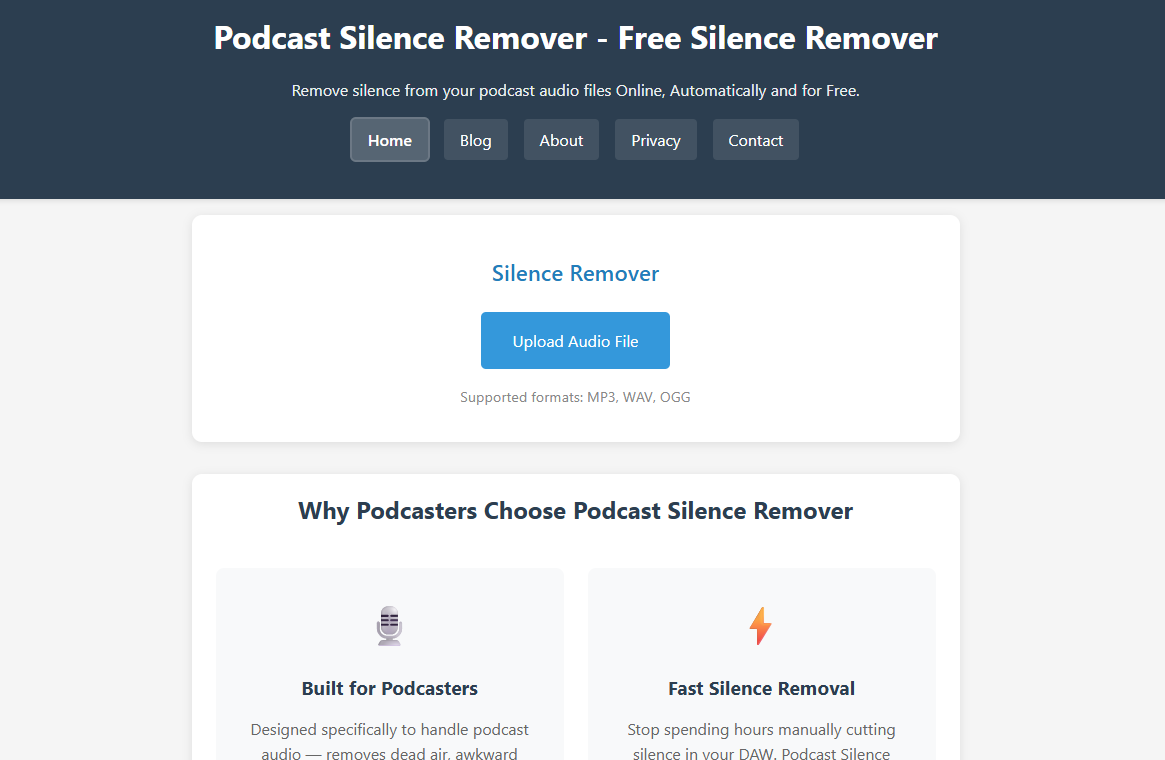
Head to the homepage and upload your file by clicking the upload area or dragging and dropping it in. The tool accepts MP3, WAV, and OGG files up to 200MB.
Step 3: Click "Remove Silence"
Hit the Remove Silence button. The tool runs your episode through an FFmpeg-powered silence detection engine that scans the entire file — start, middle, and end — and strips every gap that falls below the audio threshold. Processing typically takes just a few seconds.
Step 4: Preview the Waveform
Once processing is complete, you'll see a before-and-after waveform comparison. Use the built-in audio player to listen and make sure the result sounds right before you download it.
Step 5: Download and Publish
Download your cleaned episode and drop it straight into your publishing workflow — Buzzsprout, Podbean, Anchor, Spotify for Podcasters, or wherever you host. Your file is automatically deleted from our servers after processing.
When Should You Use a Podcast Silence Remover?
Not every episode needs the same level of silence removal. Here's a quick reference:
- Solo episodes: High value — long gaps between thoughts are common and easy to miss during recording.
- Interviews: Very high value — remote interviews over Zoom or Riverside often have connection micro-pauses that add up to minutes of dead air.
- Panel discussions: High value — multiple speakers mean more turn-taking gaps and fumbled handoffs.
- Scripted/narrative podcasts: Use with care — deliberate dramatic pauses should be preserved. Preview carefully before publishing.
- Repurposed YouTube audio: High value — video recordings almost always contain extended B-roll silences that ruin the audio-only experience.
Podcast Silence Remover vs. Manual Editing in a DAW
Here's an honest comparison to help you decide when to use an automated tool versus your DAW:
- Speed: Automated remover — seconds. Manual DAW editing — 30 to 90 minutes per episode depending on length.
- Skill required: Automated — none. DAW — moderate to high.
- Control: DAW wins for precision editing. The automated tool wins for bulk silence removal.
- Best use: Use the podcast silence remover for the first pass, then use your DAW for any fine-tuning (music beds, ads, chapter markers).
Most experienced podcasters combine both: they run every raw episode through a silence remover first to eliminate the grunt work, then do a quick pass in their DAW for the final polish.
Tips for Cleaner Recordings (Less Silence to Remove)
The best silence is the silence you never record in the first place. These habits will reduce the amount of dead air in every episode:
- Use a noise gate while recording: A noise gate in your recording software automatically mutes the mic below a set volume threshold, preventing background hum from filling pauses.
- Record in a treated space: Rooms with soft furnishings (rugs, curtains, bookshelves) absorb ambient noise that otherwise bleeds into silent gaps.
- Keep a tight structure: Use an outline or script. The more you know what you're going to say next, the fewer long pauses you'll take between thoughts.
- Back-to-back recording: When interviewing, ask your guest to record locally with Zoom or Riverside set to separate tracks. Their mic quality eliminates the connection-lag silences that plague remote interviews.
Frequently Asked Questions
Does the podcast silence remover affect audio quality?
No. The tool only removes silent segments — it does not re-encode, compress, or alter any audio that contains sound. Your original quality is preserved exactly as recorded.
What file formats does the podcast silence remover support?
MP3, WAV, and OGG. These cover virtually every podcast recording and editing workflow in use today.
Will it remove intentional pauses between sentences?
Short natural pauses (under the silence threshold) are preserved. The algorithm targets true silence — segments that fall below the audio detection threshold for a defined minimum duration. Conversational pauses between sentences typically don't trigger removal.
Is there a file size limit?
Files up to 200MB are supported. For reference, a full-quality MP3 of a one-hour podcast is typically 80–90MB, so most episodes will fit without any compression needed beforehand.
Are my podcast files stored after processing?
No. Your audio file is automatically deleted from our servers immediately after processing. We never store, analyze, or share your content.
Is this really free?
Yes — completely free. No account, no subscription, no watermark on the output file.
Remove Silence from Your Podcast Now
Upload your episode and get a cleaner, tighter recording in seconds — no software, no sign-up, completely free.
Try the Podcast Silence Remover